Meraki VPN for Windows
Open the 'Settings' app and go to 'Network and internet'. Select 'VPN' in the menu on the left.

Click 'Add a VPN Connection'.
Select the options as follows: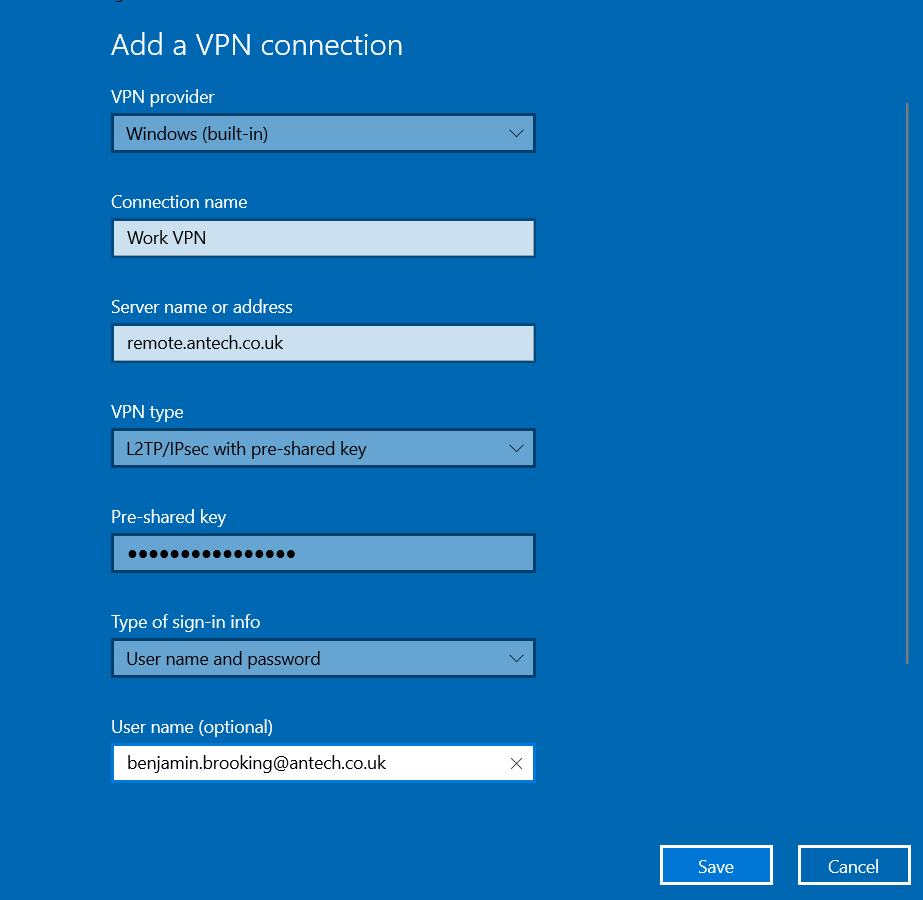
For Pre-shared key, username and password fields enter the values provided by the IT department.
Click save.
Now back on the VPN settings page:
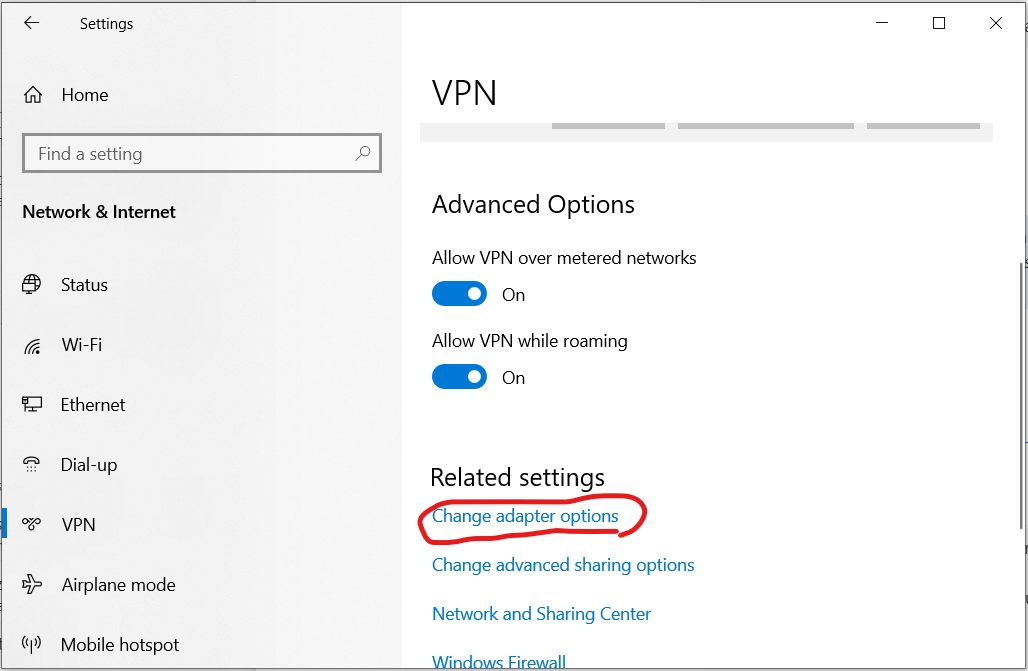
Click 'Change adapter options'

Right click on the adaptor matching the name you gave your new VPN connection and go to 'Properties'
- In the Security tab, select Require encryption (disconnect if sever declines) under Data encryption
- Under Authentication select Allow these protocols and select Unencrypted password (PAP)
- Verify that no other protocols are selected
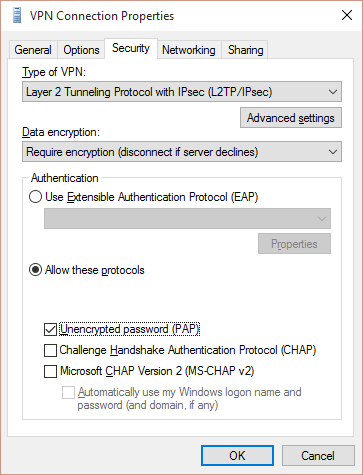
Click OK.